Import your configuration file into Oracle
Activate the integration in AssessFirst
Update the AssessFirst partner in Oracle
Create a partnerUsername in Oracle
1. Import your configuration file into Oracle
Go to:
Settings and Actions → Setup and Maintenance → Manage Configuration Packages
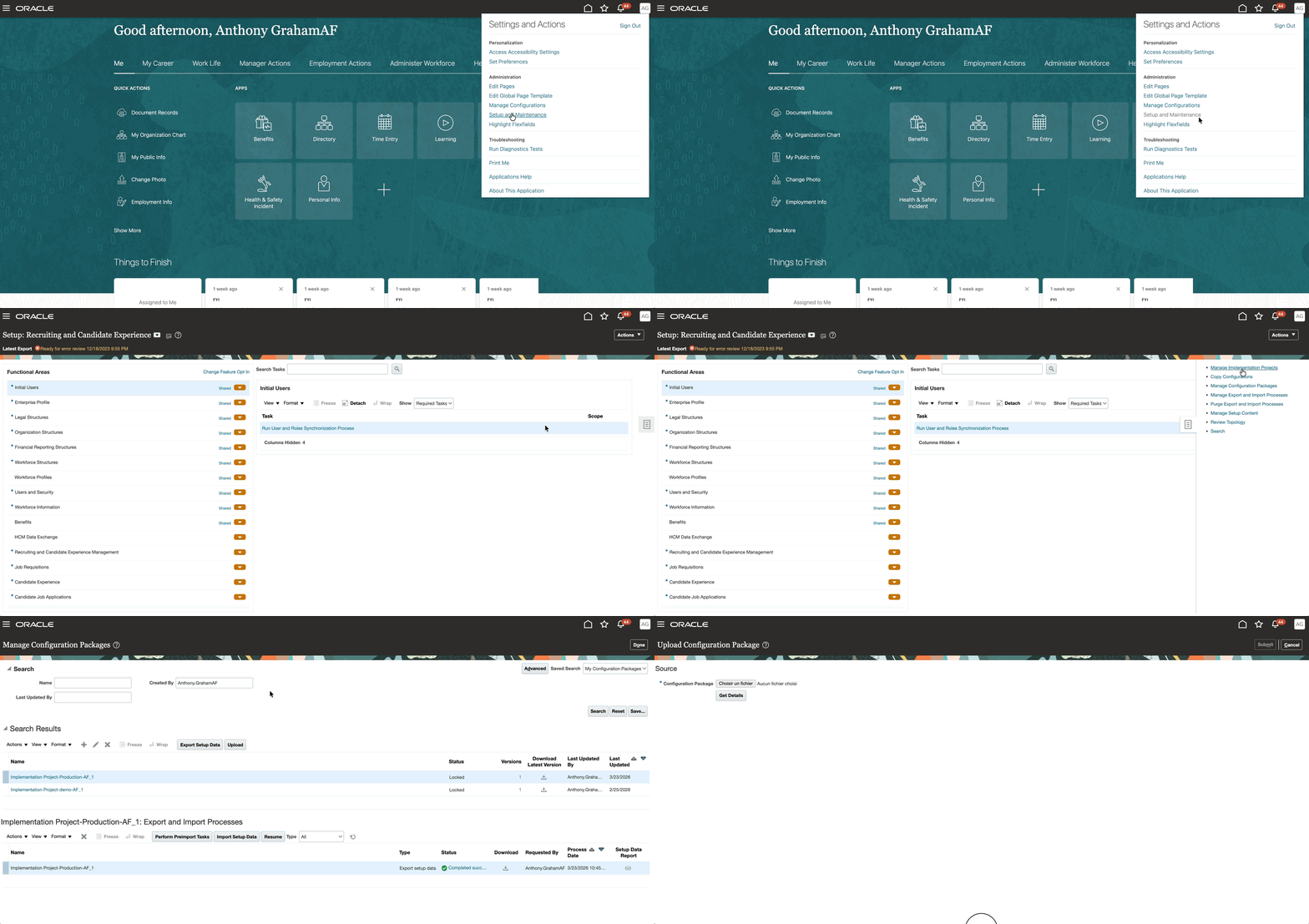
Click on Upload and import the configuration file corresponding to your environment:
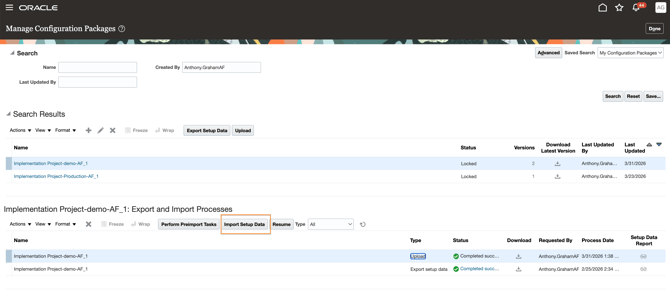
Select the uploaded file, then click Import Setup Data
2. Activate the integration in AssessFirst
-
Log in to AssessFirst with an administrator account
-
Go to the Marketplace
-
Click the top-right icon → Settings → Integrations
-
Select Oracle, then click Activate
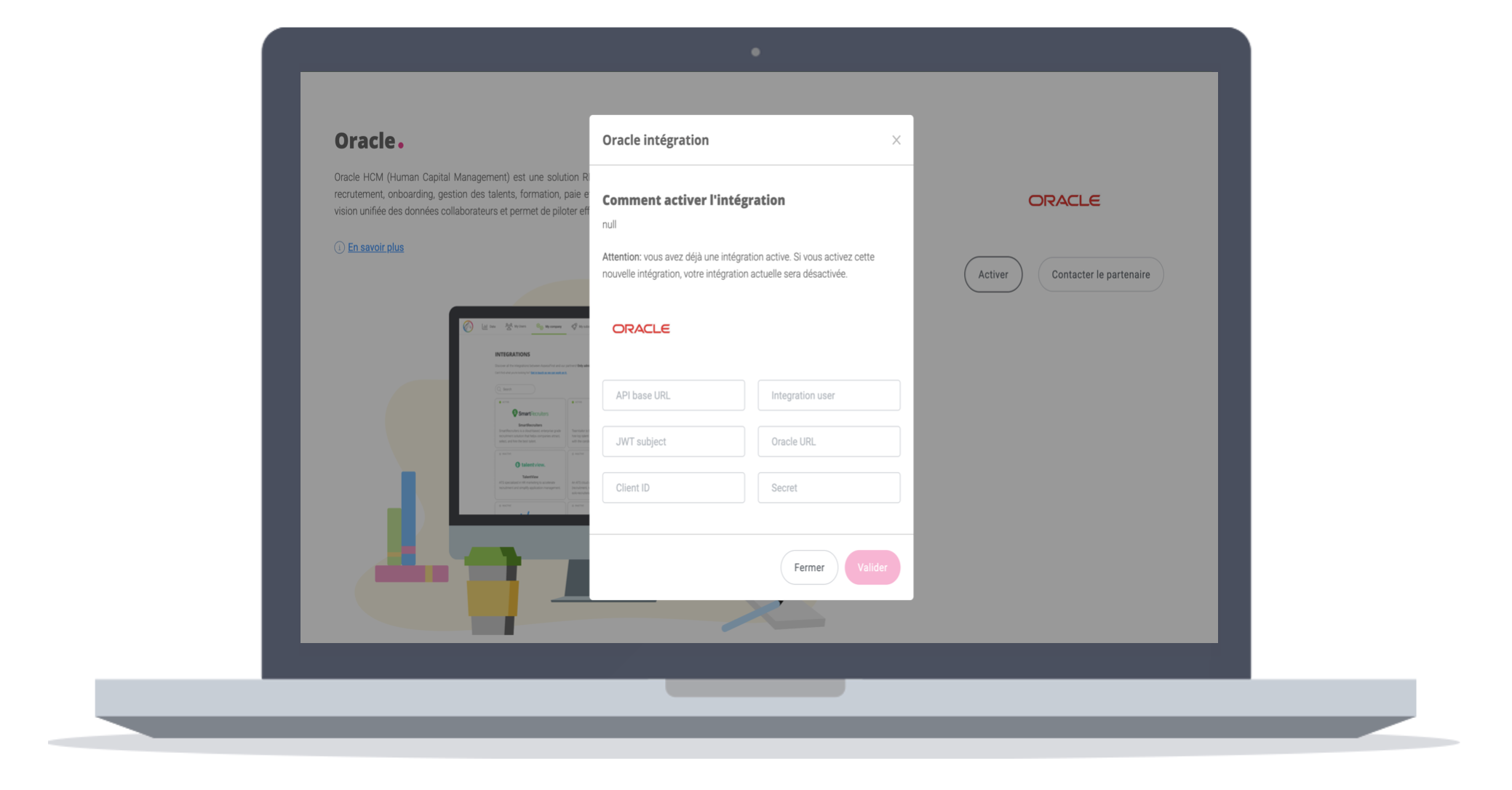
In the pop-up window, you will need to enter four data:
-
API Base url : ORC Host URL, example "https://egue-dev12.fa.us2.oraclecloud.com/"

-
Integration user : OCRl.af.acc1
-
JWT subject : IDCS application instance for your API account, example 'TPI_AF.API’
-
The customer should provide a user having this privilege:
Use REST Service - Candidate Assessments
-
-
Oracle URL : IDCS URL
-
Client ID : Client ID
-
Secret : Client secret
Validate
👉 Three credentials will be generated:
-
Client ID
-
Client Secret
-
API key
3. Update the AssessFirst partner in Oracle
-
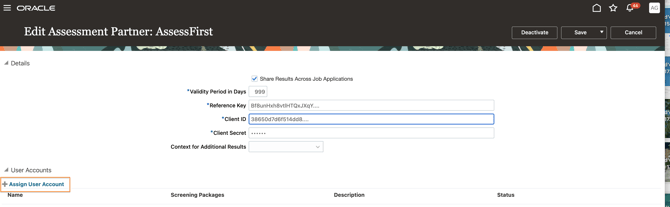
Go to: Settings and actions -> Setup and maintenance -> Recruiting and Candidate Experience Management -> Recruiting category Provisioning and Configuration -> AssessFirt
-
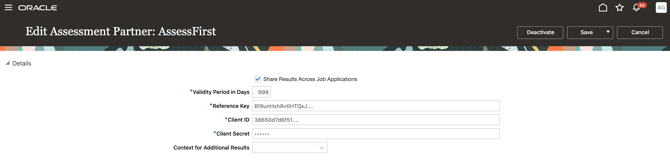
Enter the three credentials generated in AssessFirst:
-
Client ID
-
Client Secret
-
Reference Key -> API key
3. Save the configuration
4. Create a partnerUsername in Oracle
-
On the same page, create a new user
-
Use the name: OCRl.af.acc1
-
Assign the user via Assign user account
✅ Result
Once the setup is complete:
-
Your AssessFirst predictive models are synchronized with Oracle
-
The integration is ready to use
To learn how to use the integration with Oracle, click here.