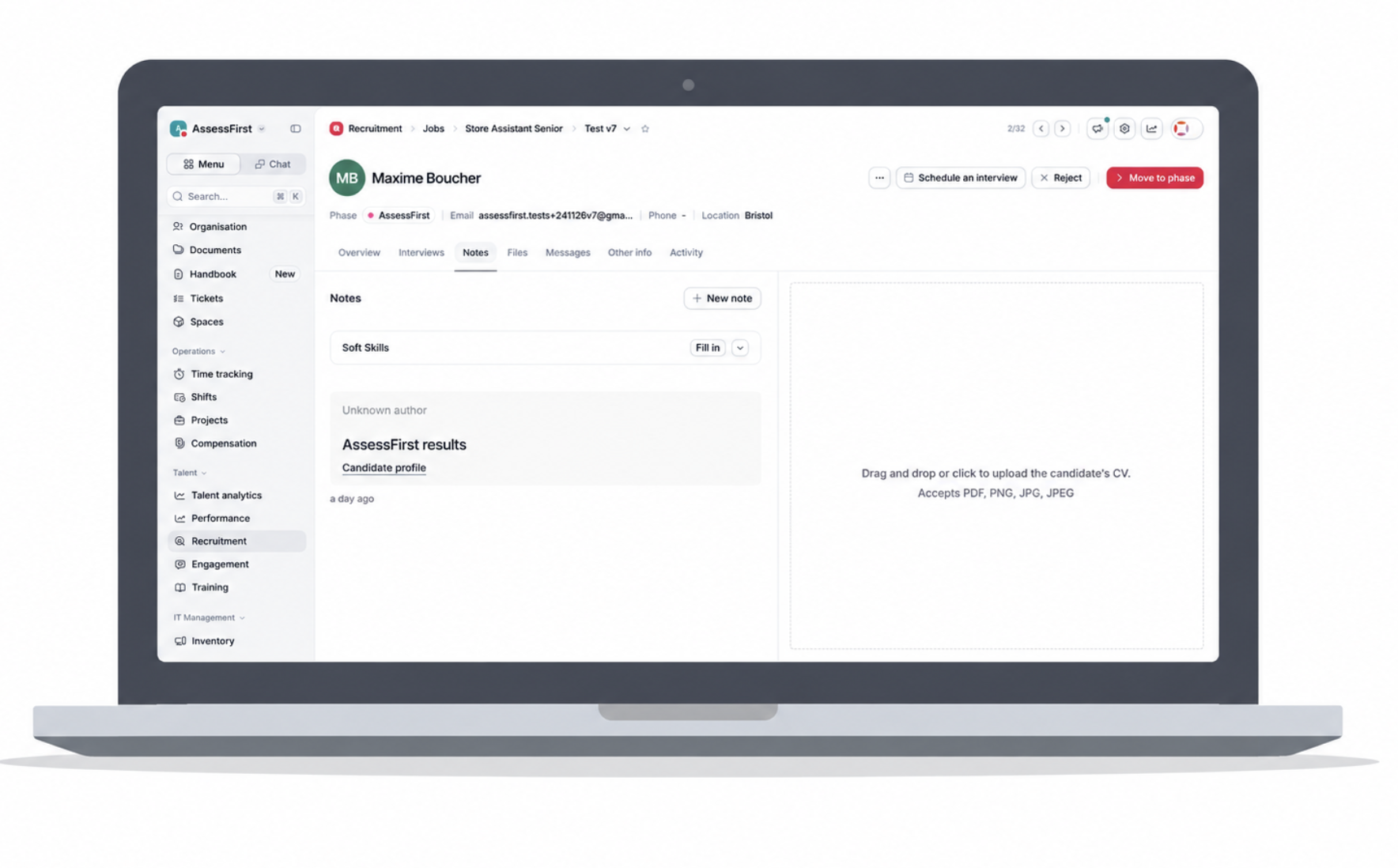
Accessing a candidate's results
Send an invitation
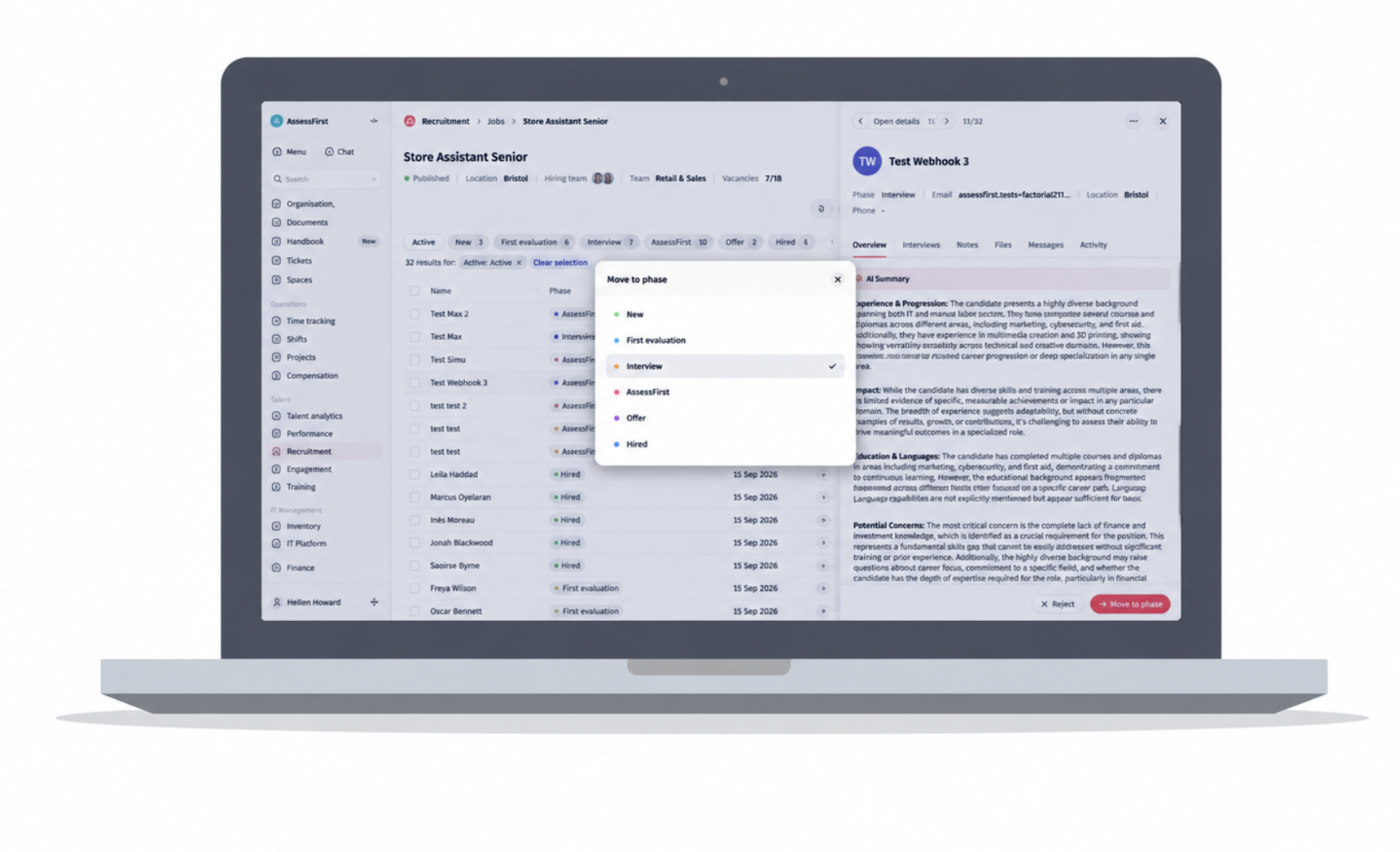
When setting up the Factorial integration, you need to specify at which stage of your recruitment process you want AssessFirst assessments to be sent. Once configured, an invitation will automatically be sent whenever you move a candidate to the "AssessFirst" phase.
- Click on the Recruitment tab in the left-hand menu.
- Choose the relevant job opening, then select your candidate.
- A panel will open on the right-hand side. Click on the red Move to phase button and select "AssessFirst".
- The invitation will automatically be sent within a few minutes, and the candidate will be moved to the "AssessFirst" phase.
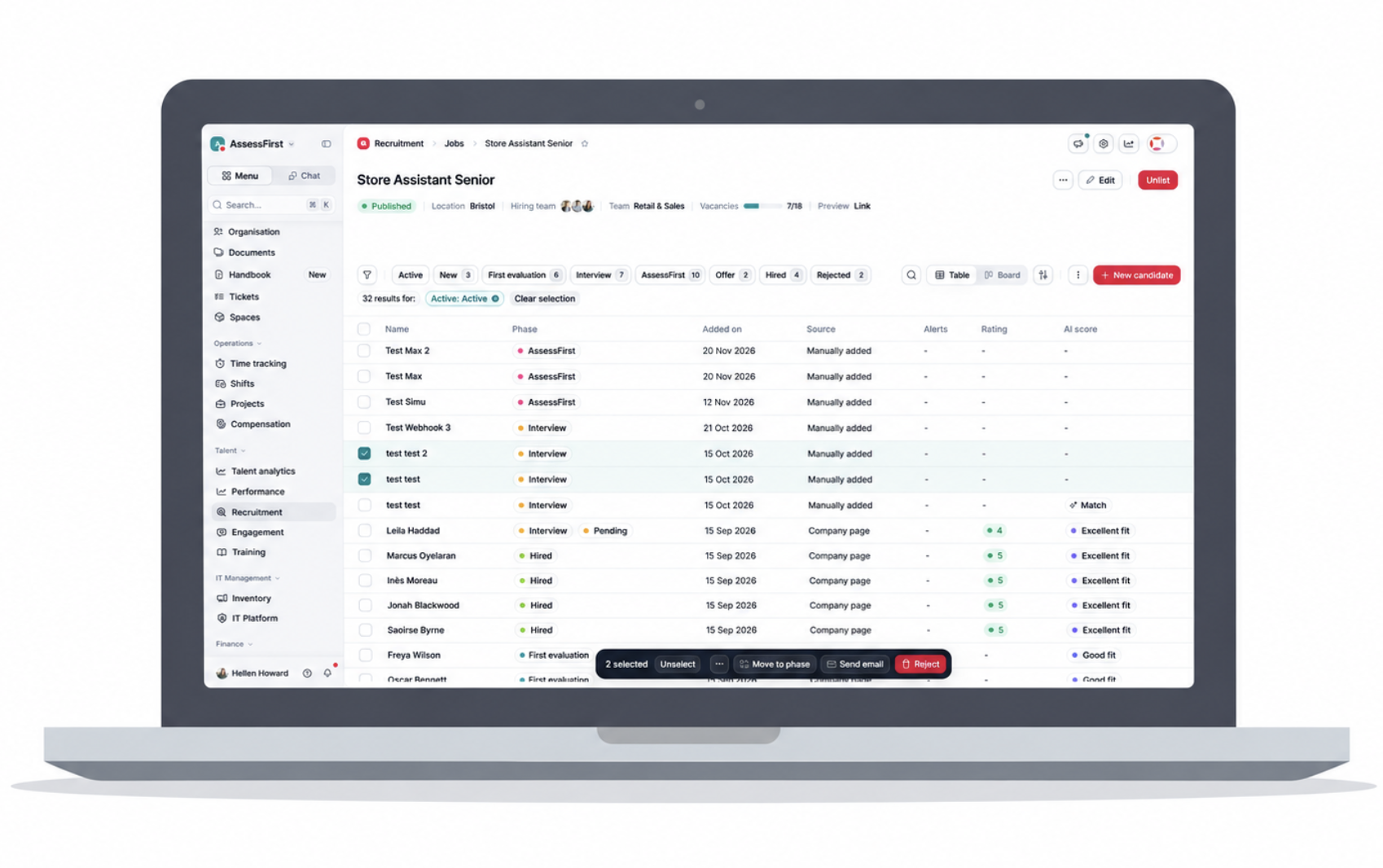
Sending invitation in bulk
- Click on the Recruitment tab in the left-hand menu.
- Choose the relevant job opening and select your candidates by ticking the checkbox next to their names.
- An action bar will appear at the bottom of the screen. Click on Move to phase and select "AssessFirst" from the drop-down menu.
- All selected candidates will be moved to the "AssessFirst" phase and will automatically receive an invitation to complete their assessments.
Accessing a candidate's results
- From the relevant job opening, click on a candidate's profile, then select the Notes tab.
- In the AssessFirst Results section, click on Candidate profile.
- The Library Report will open, allowing you to select a predictive model and access all available reports.