1/ Creation of the predictive models module
2/ Attach the PM module to the Vacancy module
3/ Create result fields in the Application module
7/ Activation of integration in the AssessFirst marketplace
1/ Creation of the predictive modeling module
To have AF predictive models, you need to create a custom module.
→ Go to Configuration -> Customization -> Modules.
→ Click on “Create a module.”
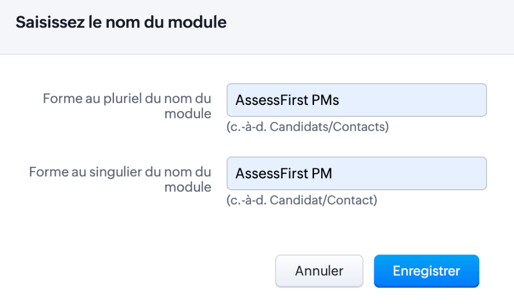
→ Enter the “names” of the module with the following criteria:
Plural form: AssessFirst PMs
Singular form: AssessFirst PM
→ Configure the module fields by removing unnecessary fields and adding a “Single line” field named “Uuid.”
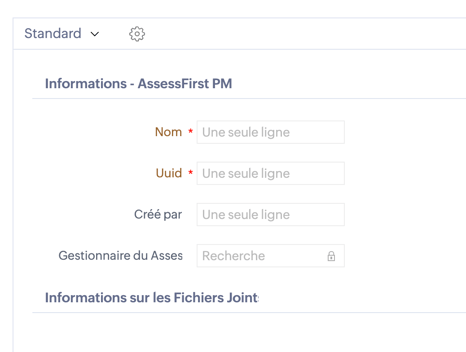
Retrieve the “technical” name of the module from the URL once you are on the field management page. This name will need to be entered when activating on the AssessFirst marketplace (Step 8).
In our case, this will be “CustomModule1.”
2/ Attach the PM module to the Vacancy module
To link AF predictive models to Jobs in the ATS
→ Go to Configuration / Customization / Modules
→ Click on the module in the “Job Openings” list
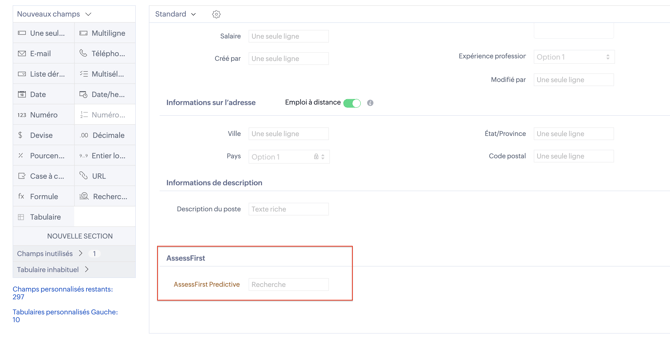
→ Create (by dragging and dropping) a new “Assessfirst” section
→ Add a “Search” field to this new section:
Field label: AssessFirst Predictive Model
Query type: AssessFirst PMs (previously created model)
List title: AssessFirst Predictive Model
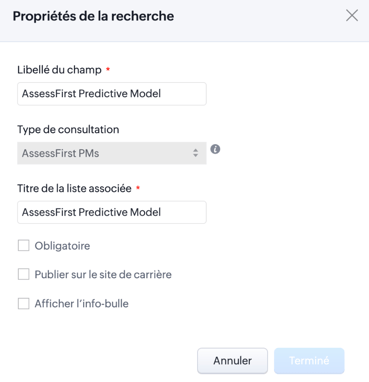
→ Click on “Finish”
→ Click on “Save layout”
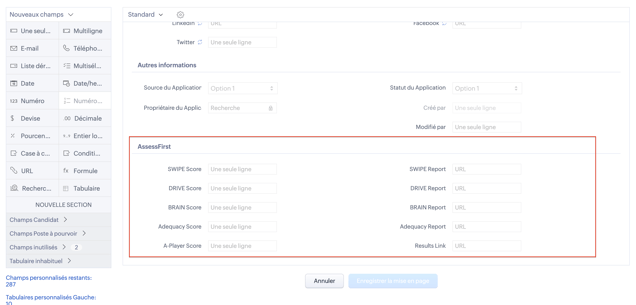
3/ Create result fields in the Application module
To enable the display of a candidate's AF results during an application.
→ Go to Configuration -> Customization -> Modules
→ Click on the module in the “Applications” list
→ Add a new section called “AssessFirst”
→ Add the following fields (ensuring that the field names and capitalization are correct):
| Nom du champ | Type |
|---|---|
| SWIPE Score | Une seule ligne |
| SWIPE Report | URL |
| DRIVE Score | Une seule ligne |
| DRIVE Report | URL |
| BRAIN Score | Une seule ligne |
| BRAIN Report | URL |
| Adequacy Score | Une seule ligne |
| Adequacy Report | URL |
| A-Player Score | Une seule ligne |
| Results link | URL |
→ Click on “Save Layout”
4/ Create a Webhook
To configure the AF webhook elements to be triggered when inviting a candidate:
→ Go to Configuration -> Automation -> Action
→ Click on the “Webhooks” tab
→ Click “Configure Webhook”:
Name: Application - Assessfirst send Invite
URL to notify: [AFBaseURL]/integrations/zohorecruit/send-invitation
- [AFBaseURL] for production -> app.assessfirst.com
- [AFBaseURL] for testing -> simu.assessfirst.com
Method: Post
Type: General
Module: Applications
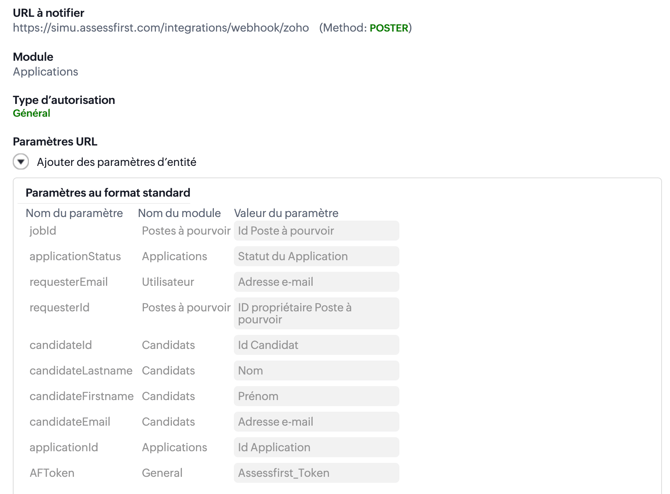
→ Add the following URL Parameters:
| Nom du paramètre | Type | Valeur |
|---|---|---|
| jobId | Postes à pourvoir | Id Poste à pourvoir |
| applicationStatus | Applications | Statut de l'application |
| requesterEmail | Utilisateurs | Adresse e-mail |
| requesterId | Postes à pourvoir | Id propriétaire Poste à pourvoir |
| candidateId | Candidats | Id Candidat |
| candidateLastname | Candidats | Last name |
| candidateFirstname | Candidats | First name |
| candidateEmail | Candidats | |
| applicationId | Applications | Id Application |
| AFToken | General | Assessfirst Token |
→ Click on “Save.”
5/ Create a Webhook Trigger
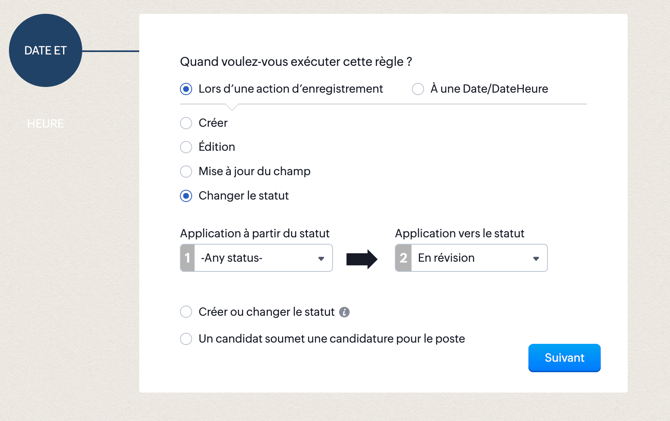
Once the webhook has been created, you need to define a workflow rule specifying the trigger criteria.
→ Go to Configuration -> Automation -> Workflow Rules.
→ Click on “Create Rule”:
- Module: Applications
- Rule Name: Call AF Webhook
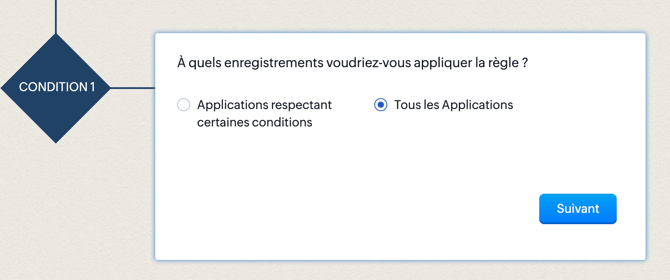
→ Manage a possible condition:
→ Add a Webhook-type “Instant Action” and select the previously created Webhook:
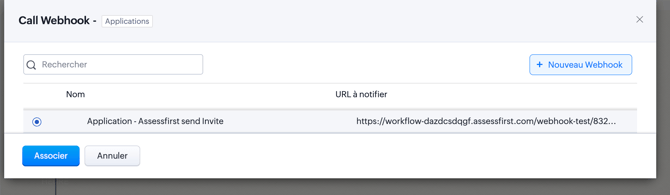
→ Click on “Associate”
→ Click on “Save.”
6/ Integration activation
⚠️ Before activating AF, you must generate an OAuth code on Zoho that is only valid for 10 minutes. 🕐
To generate the OAuth code on Zoho:
→ Log in to Zoho Developer Console
→ Click on “ADD CLIENT”
→ Select the “Self Client” type
⇒ Retrieve the Client ID and Client Secret
→ Then click on the “Generate Code” tab
⇒ Scope: ZohoRecruit.users.all,ZohoRecruit.org.all,ZohoRecruit.settings.all,ZohoRecruit.modules.all
⇒ Time Duration : 10 Minutes
⇒ Scope Description : AssessFirst App
⇒ Select Portal : Recruit + Organisation
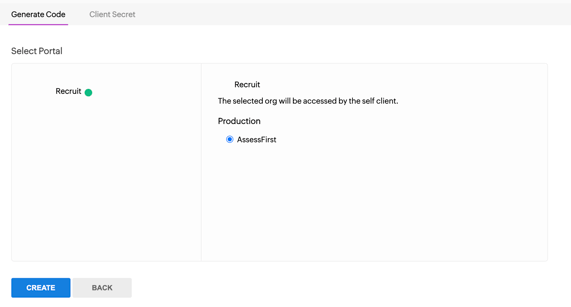
=> Retrieve the OAuth code for activation in the AssessFirst marketplace.
7/ Activation of integration in the AssessFirst marketplace
If you are an Administrator and have an API license, you can activate the integration in the AssessFirst marketplace:
1. Click on the icon in the top right corner to access your settings and select Integrations.
2. Click on Zoho.
3. Click on Activate
Enter the following settings : https://www.zoho.com/recruit/developer-guide/apiv2/access-refresh.html)
-> Authorization code : Ouath code retrieved in part 7
-> Custom module value : Value recovered in step 1
-> Domain URL -> by default https://recruit.zoho.eu
When you confirm, an AssessFirst token will be generated. You will need to paste it into Zoho to finalize the integration.
8/ Add an AF Token variable
To add the AssessFirst identification token:
→ Go to Configuration -> Developer Area -> Recruit variables
→ Click “Create a new variable”:
- Variable name: Assessfirst Token
- Type: single line
- Value: Paste the token that was generated on the AssessFirst marketplace
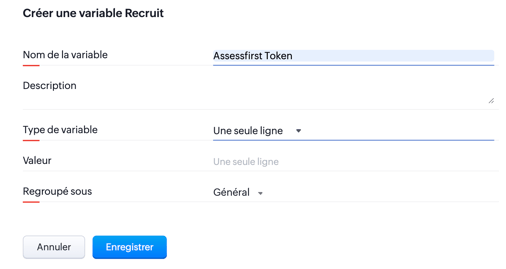
→ Click on “Save.”
To learn how to use the integration with Zoho, click ici.