Configure a predictive model in a position
- When creating a position, you can add AssessFirst at the “Job setup” stage.
- You can choose the position of the AssessFirst tests by dragging the item onto your Job setup.
- To choose a predictive model for this position, click on the pencil icon on the right.
- You can then choose the predictive model you want and click Save.
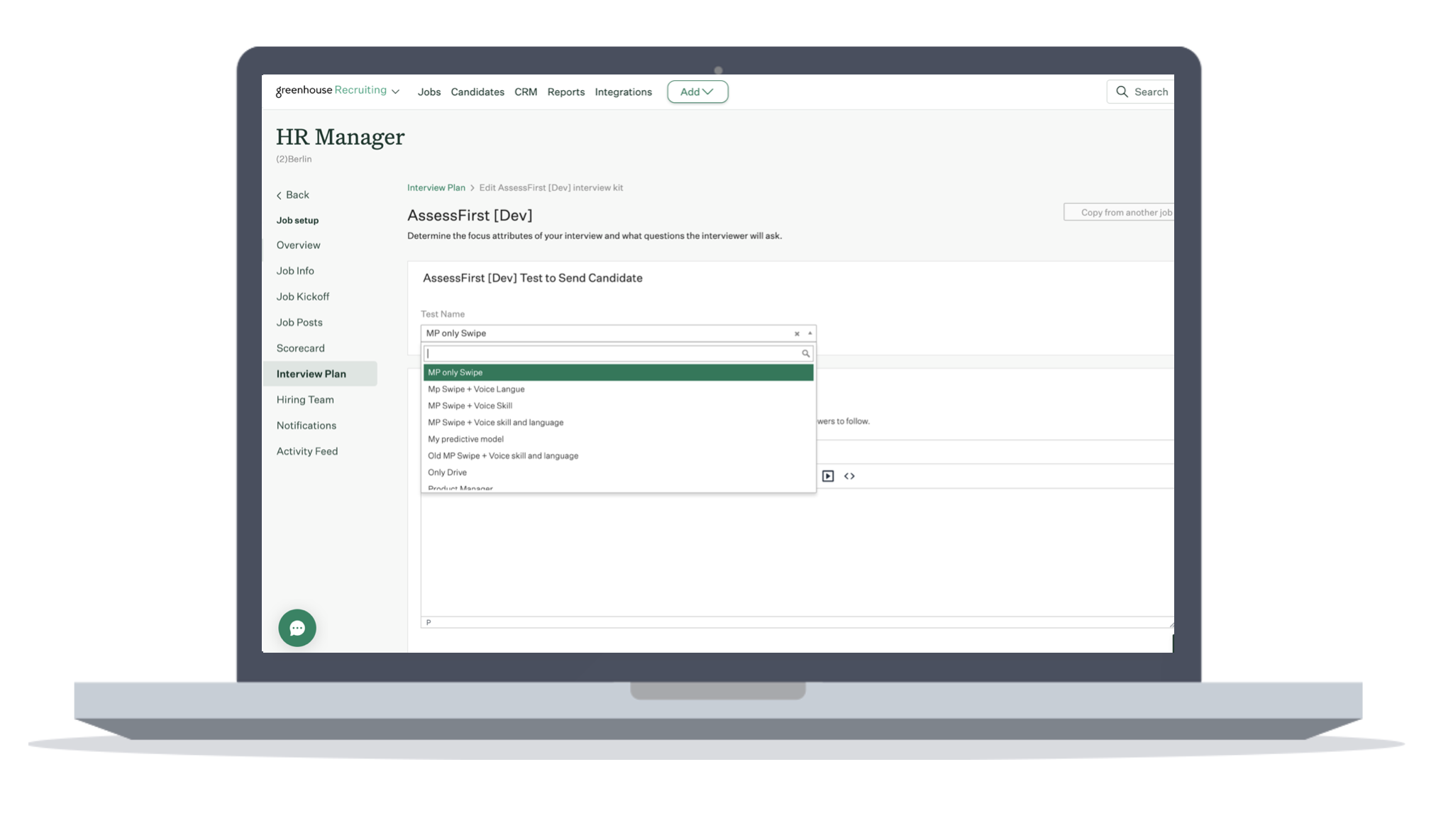
It is not mandatory to choose a predictive model when creating the position.
Send an invitation to a candidate
1. Go to the job dashboard and click on “Candidates” in the left-hand menu.
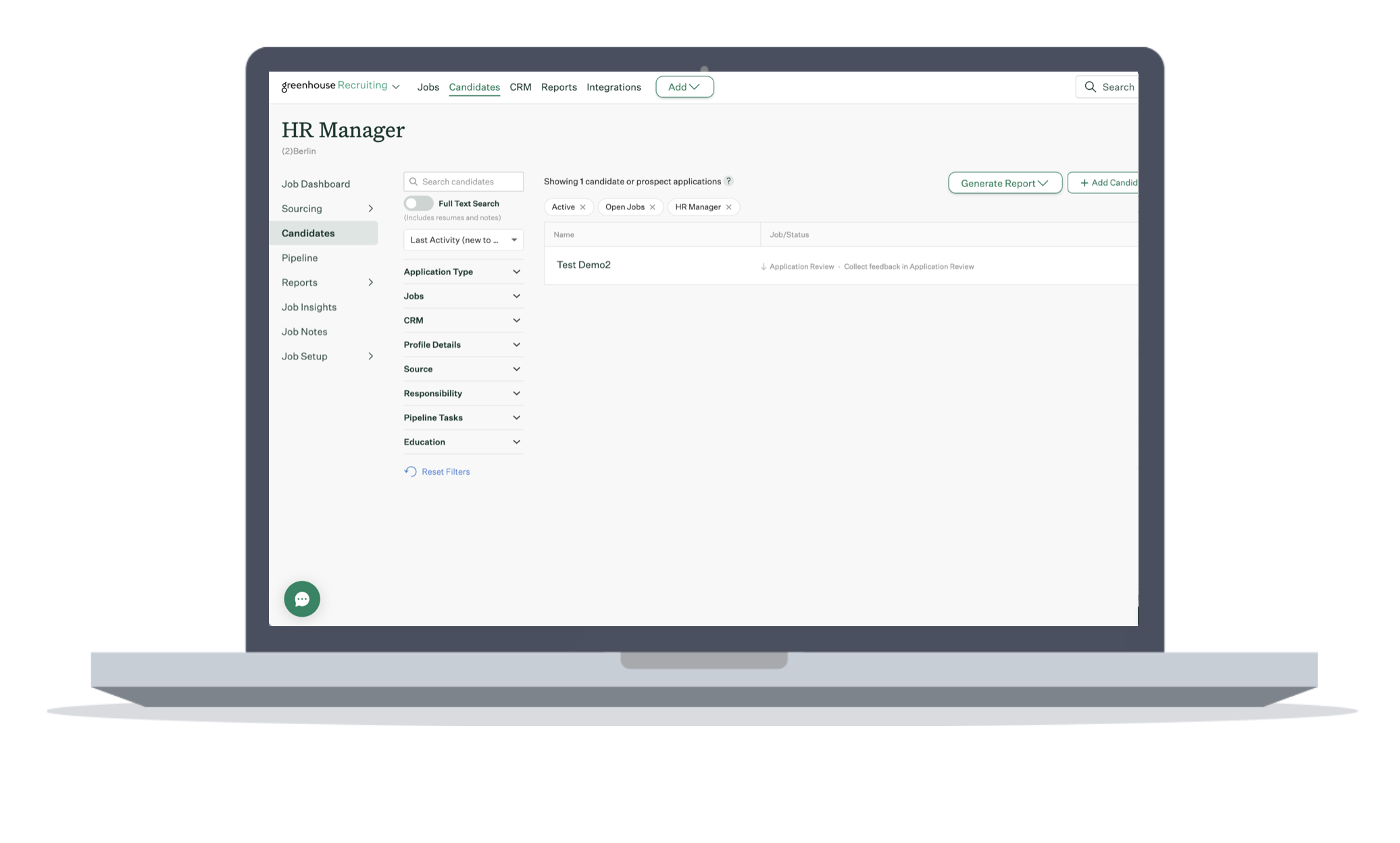
2. Select the candidate to whom you wish to send the invitation.
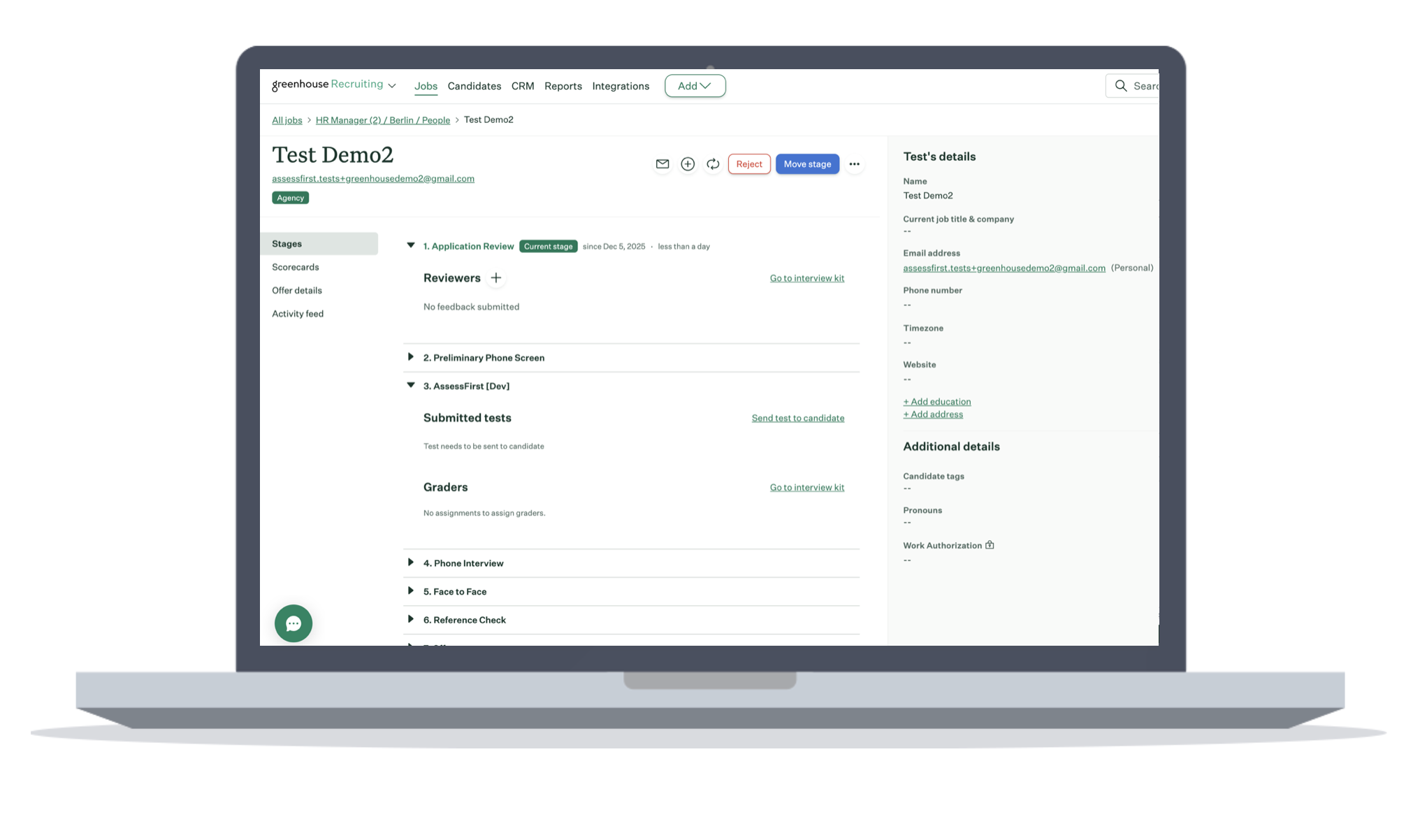
3. In the AssessFirst stage, click on “Send test to candidate”.
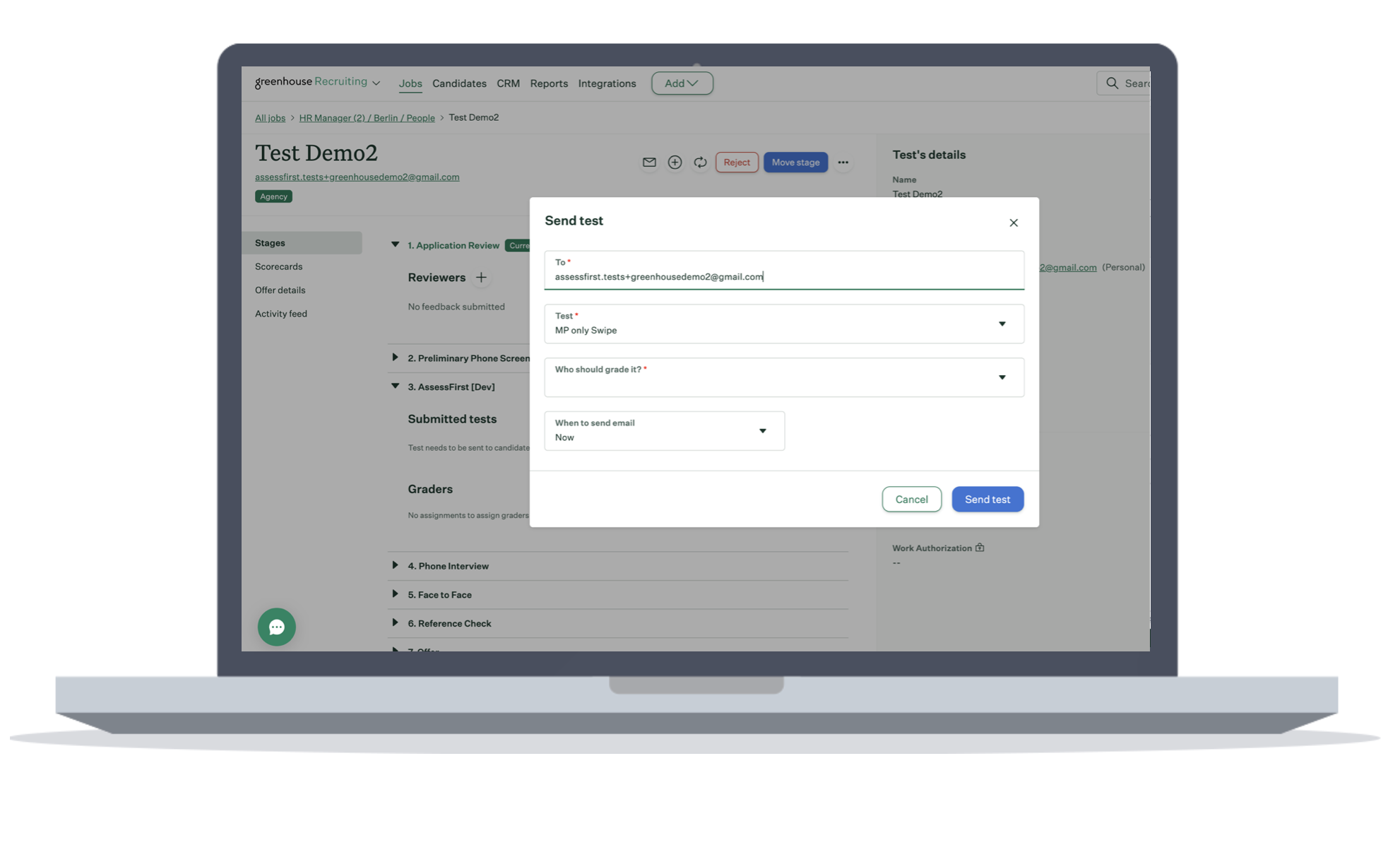
4. The predictive model you selected when creating the position is displayed. You can also select another one.
5. Once you have filled in the required fields, click “Send test”.
Automatically send invitations to candidates
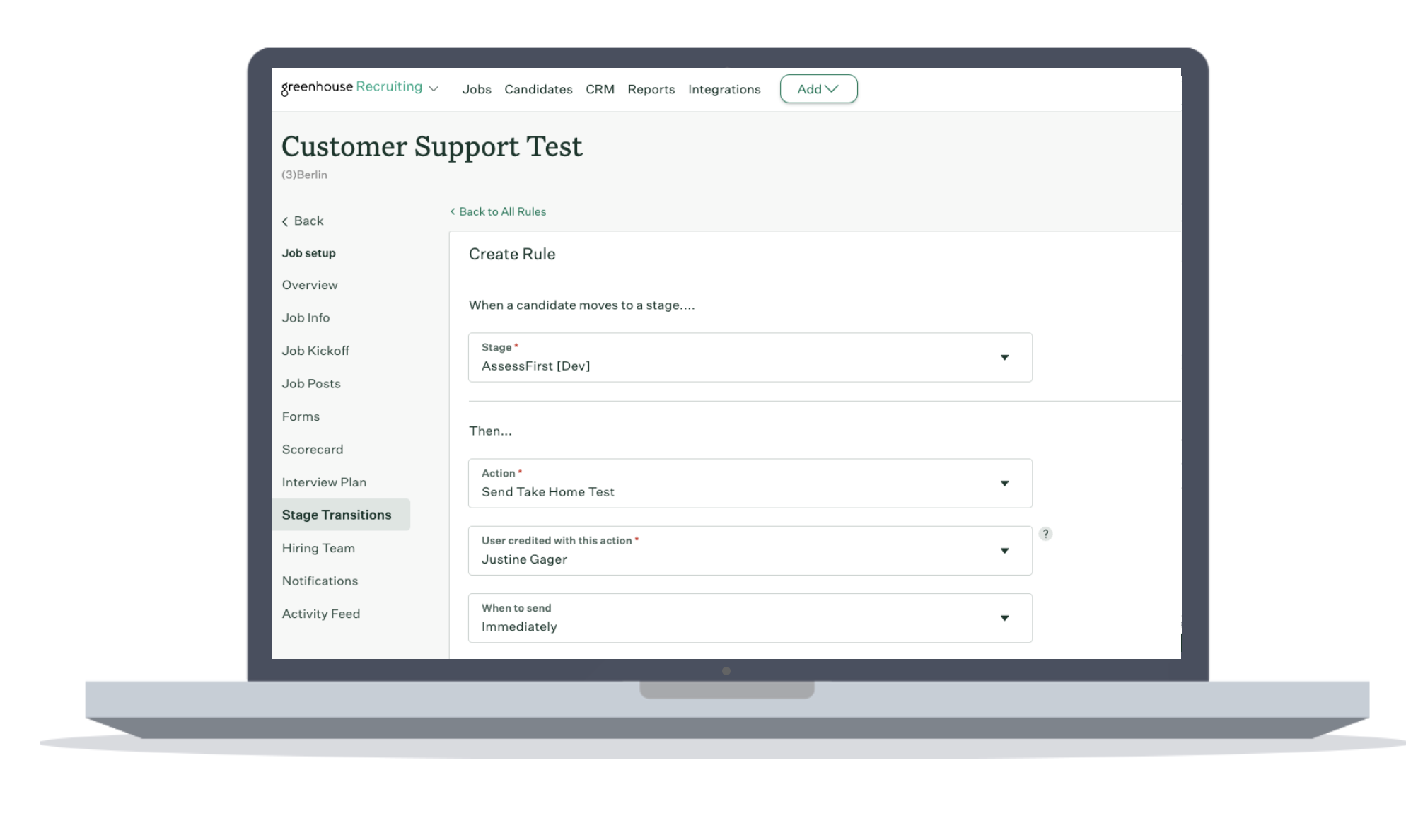
You can automatically send the AssessFirst invitation when moving a candidate to a different stage. To do this, you need to configure the following:
- A grader and notifications in the Interview Plan.
- In the "Stage Transitions" section:
- Click "Create a rule".
- Select the AssessFirst stage, then choose the "Send Take Home Test" action.
- Select the user credited with this action and choose when the invitation should be sent.
Once this is set up, whenever you move a candidate to the AssessFirst stage, the invitation will be sent automatically.
View candidate results
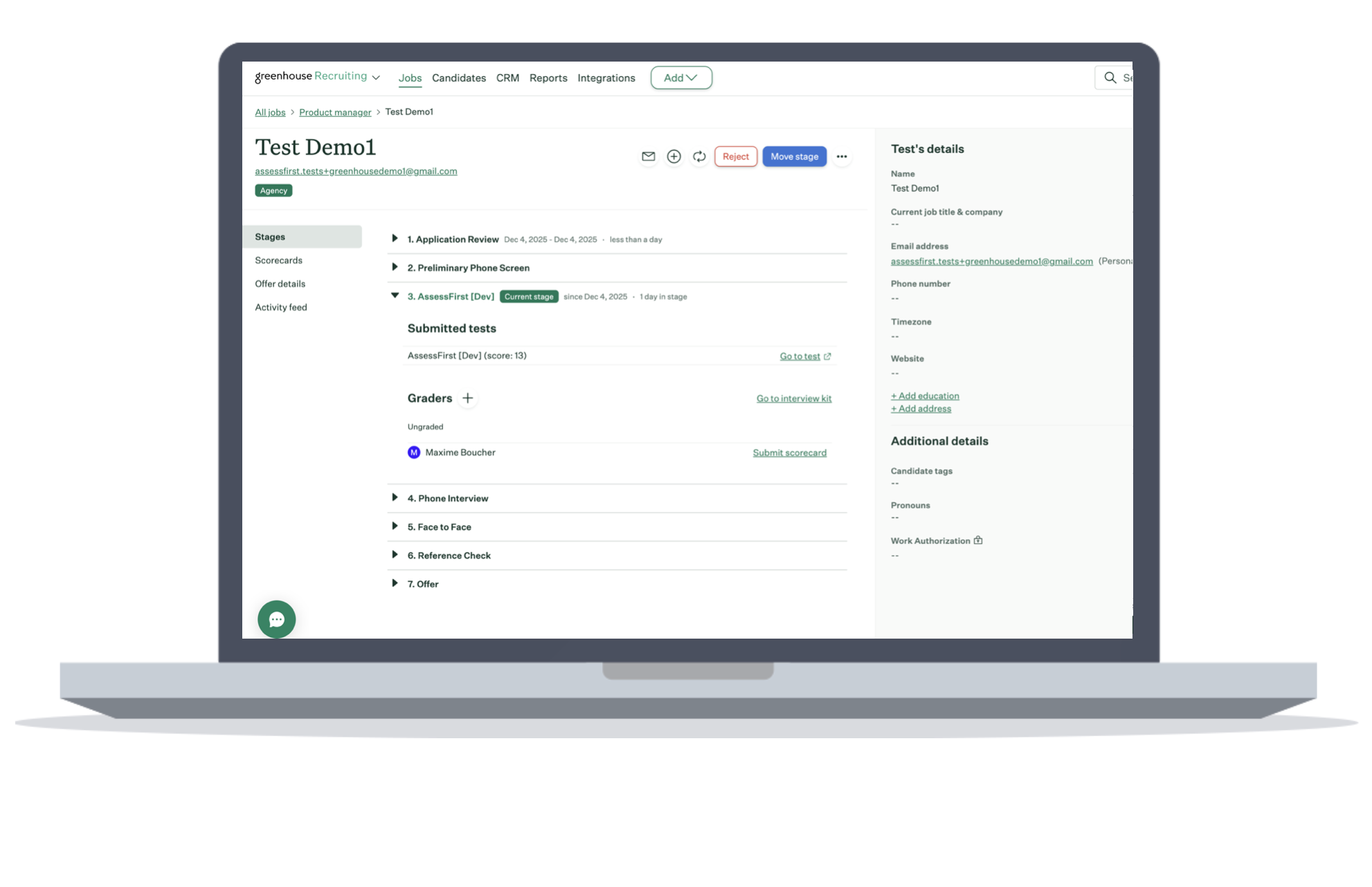
1. Once the candidate has completed the assessments, you can return to the candidate's file in Greenhouse.
2. In the AssessFirst stage, you will see the candidate's score (compatibility).
3. Then click on the “Go to test” link, which will open the report in a new tab.
To learn how to enable integration with Greenhouse, click here.