Each predictive model consists of a set of personality, motivation, and reasoning criteria. These predictive models are used to predict candidates' ability to succeed and thrive in a given position/job within a specific company. This prediction is made by calculating the fit between the candidate and the predictive model.
We have recently added SCAN, which allows you to pre-select candidates based on predefined criteria before moving on to the “Soft skills", “Hard skills” and “Book interview” modules.
Define the questionnaires to be given to candidates
3 types of predictive model
You can create a new predictive model based on:
- a simple model linked to our benchmark
If you want to create a custom predictive model while ensuring its consistency and starting from an existing predictive model base, select this model.
- the analysis contact (not available with the ASSESS plan)
This allows you to create a template based on the analysis of a group of contacts who have already completed the three questionnaires.
- the job description (not available with the ASSESS plan)
Simply copy your job advert and our AI will generate a perfectly designed predictive model that matches your exact requirements. This feature also notifies you if your job offer includes discriminating criteria, so you can avoid bias in your recruitment process as far as possible.
.gif?hsLang=en)
Define the questionnaires to be given to candidates
You can define the questionnaires you want to give to your candidates on each predictive model.
Before doing so, in the Admin space, you must have checked “Yes” for “Adapt assessment requirements based on predictive models” located in the “My company” > “Settings” tab:
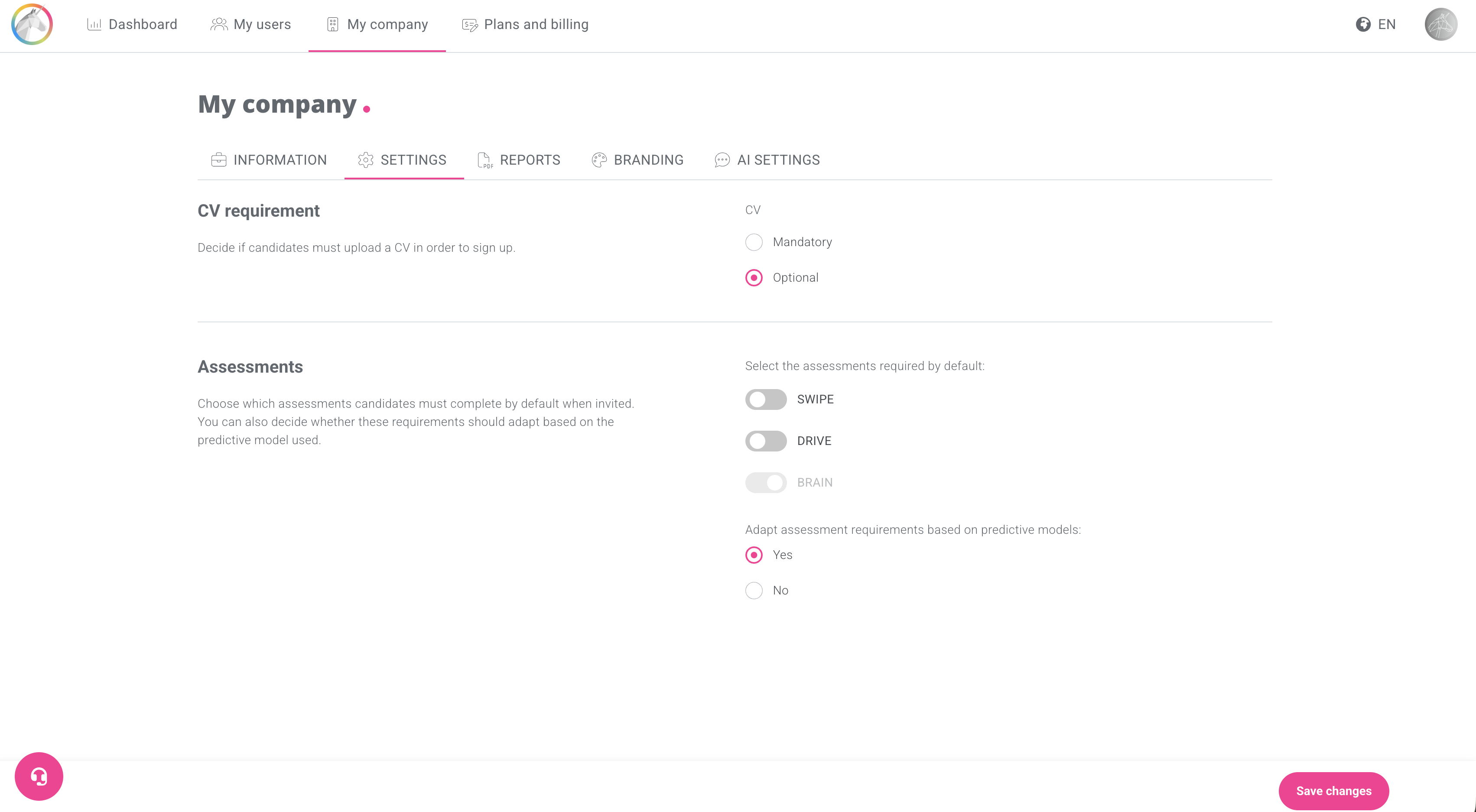
Then, when creating the predictive model, after the pre-selection stage, you can click on each questionnaire, then on “Clear all”.
.gif?hsLang=en)
In the example above, SWIPE and BRAIN have been disabled and only DRIVE will be requested from candidates.